
TABLE OF CONTENTS
Objective:
To guide agents on how to correctly create or resolve Freshdesk tickets following a Live Chat session, ensuring all customer inquiries are properly documented, tracked, and resolved for consistent service and accurate reporting.
In order to resolve any chat, a ticket creation is required. Here are the steps the follow:
Step-by-Step Process Flow
Step 1: Tap Resolve to close the ticket
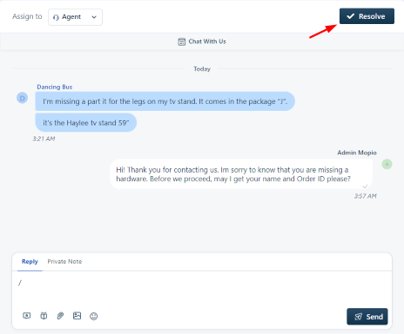
Agent can proceed to click on the "Resolve" button on the top right-hand order.
Step 2: Select Resolve and Create Ticket in Support Desk
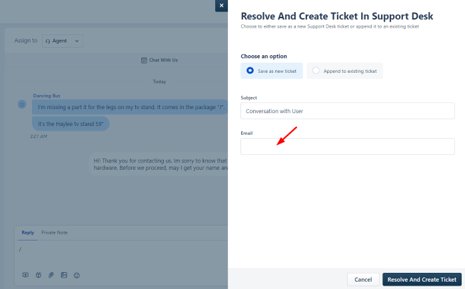
Always check the “Append to Existing Ticket” option to see if there is an ongoing open or pending conversation with the customer.
If there is an existing ticket, verify in Freshdesk that it is still in Open or Pending status before merging. Do not merge if the ticket has already been Closed or Resolved.
If there is no relevant ticket to merge with, save the chat as a new ticket.
If the agent has obtained the customer’s email address, make sure to input it in the ticket accordingly. Otherwise, you may proceed by clicking “Resolve and Create Ticket.”
Step 3: Freshdesk ticket created successfully

The system will automatically create a ticket, showing the ticket number on your screen.
Step 4: Assign the ticket to yourself and edit ticket details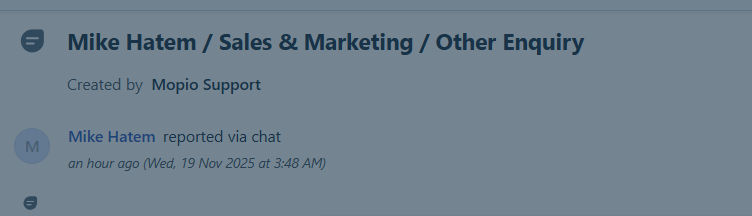
Once you are viewing the ticket in Freshdesk, please update the ticket properties and title as needed.
The ticket title should be adjusted if the customer returns with a different inquiry. For example, the ticket may initially be categorized as Sales & Marketing with a relevant sub-category. If the customer later contacts us regarding a return issue, the ticket title and properties should be updated to Orders / Return to accurately reflect the new inquiry.
Step 5: Reply to the customer
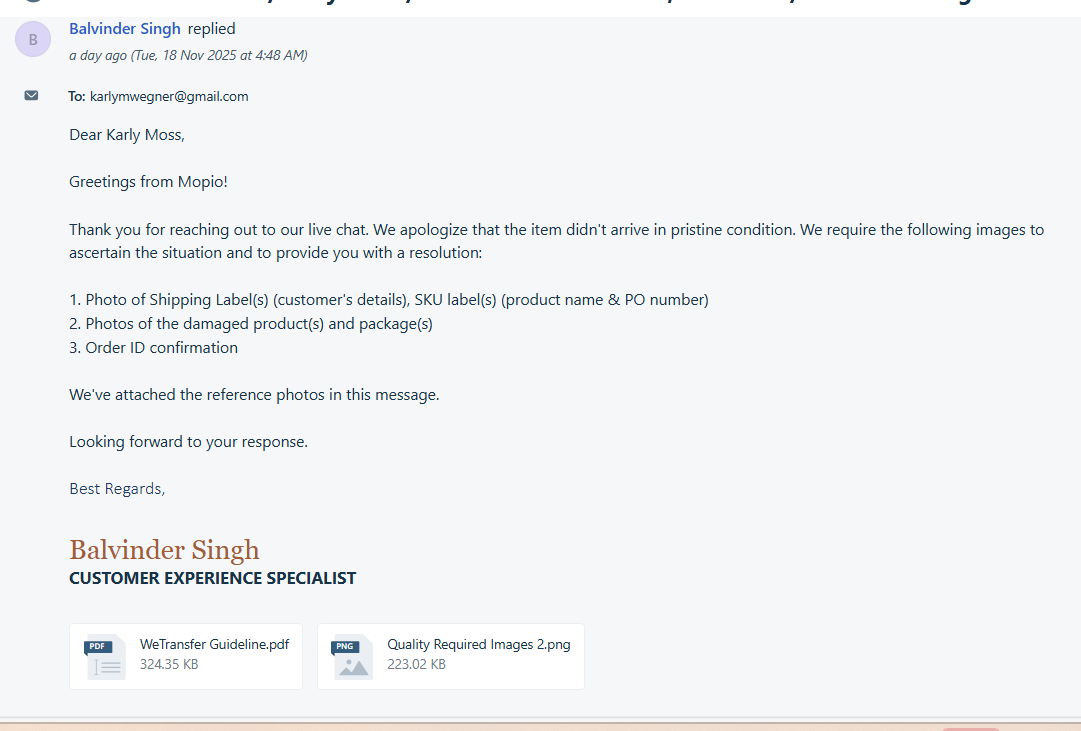
Example 1: When a follow-up email is needed, continue by sending the response following standard procedure.
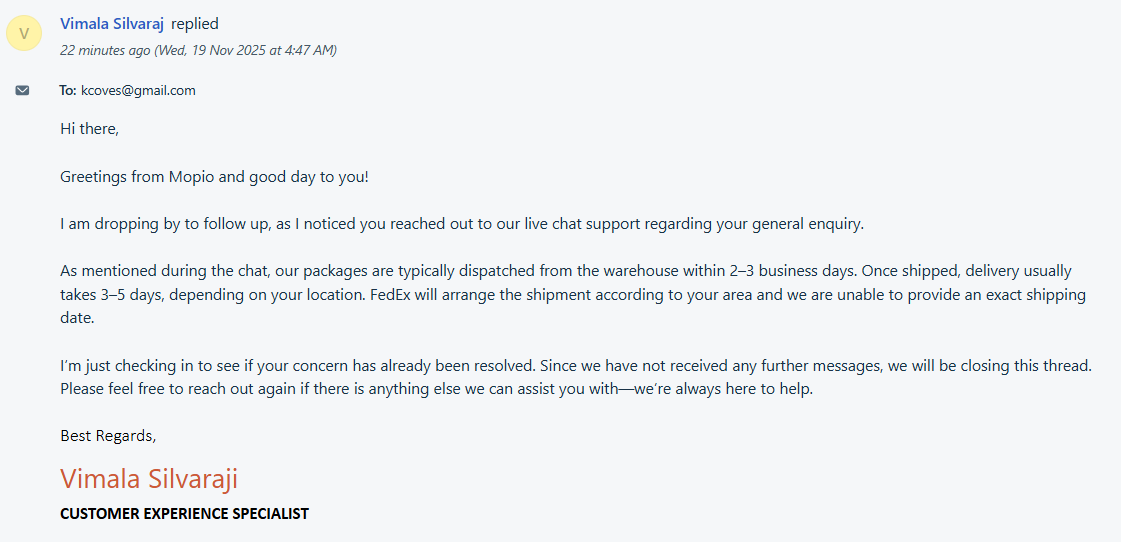
Example 2: If the customer’s issues have been fully addressed via chat and they have no further inquiries, summarize the key information provided and resolve the ticket.
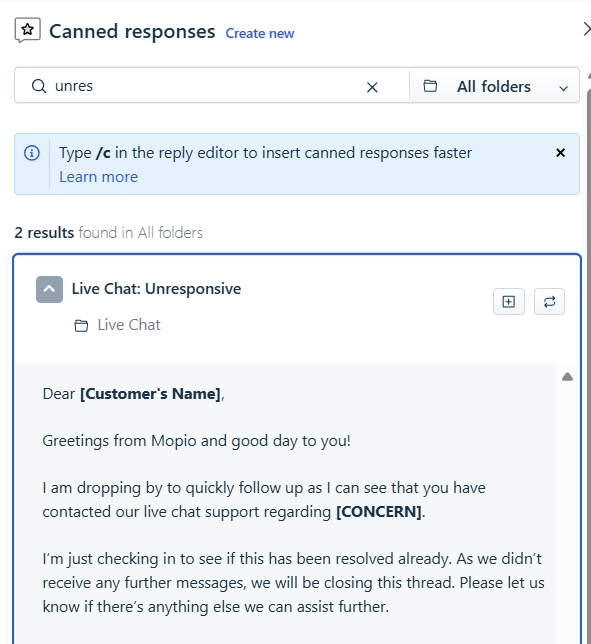
Example 3: Use this canned response template to follow up with an unresponsive chat customer and resolve the ticket.
Note to CX agent: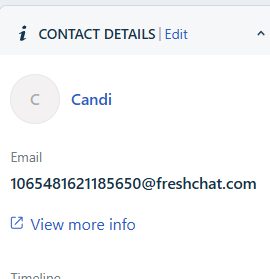
If the email address is invalid or unavailable, update the ticket information and resolve it. No follow-up email is necessary.